To use TempID mobile app, mobile device must have NFC switched on and Android operating system.
TempID mobile sensor app is available from here.


  1. Start mobile app.
  2. Connect sensor to mobile NFC (usually on mobile backside top or center area)
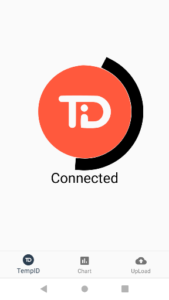
  3. Reading procedure starts (Pic 1.)
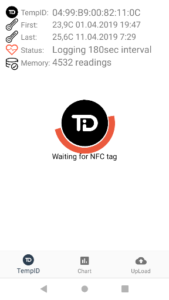
  4. When reading completed (100% reached), “Connected” text appears on screen (Pic 2.)
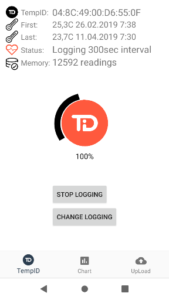
  5. Move sensor away from mobile, and application screen appears (Pic 3.)
  6. Application includes 3 Tabs: TempID – basic data about sensor and sensor settings; Chart – Sensor data chart; UpLoad – Sensor data upload to cloud.
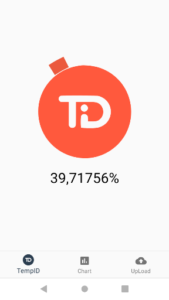
Pic 1. Reading data

Pic 2. Reading complete

Pic 3. Application screen
Sensor settings:

  1. Connect sensor to mobile NFC.
  2. Wait until 100% read.
  3. If read complete, buttons “STOP LOGGING” and “CHANGE LOGGING” appears
  4. To stop logging: keep sensor connected and click “Stop”
    Successful procedure announced by message on screen.
    When stopping logging, all previous measurements will be swiped from sensor memory.
  5. To change logging: keep sensor connected and click “Change”
    Choose logging frequency and click on it.
    Successful procedure announced by message on screen.
    When changing logging frequency, all previous measurements will be swiped from sensor memory.
UpLoad Data:

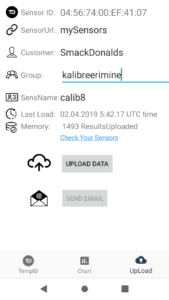
  1. “SensorUrl” field is link to collection of Your sensors.
    Link is in form of: “https://products.tempid.ee/customer/?” followed by text on SensorUrl field text
    i.e. picture link is: https://products.tempid.ee/customer/?mySensors
    On Your sensors page You can check history, review charts, delete data/sensor
  2. Fields: Customer, Group and SensorName are for Your own sensor grouping and identification.
  3. By using Sensor ID, is also possible to view only 1 sensor data, forward link etc.
    One sensor address data is only viewable, not possible to edit (like on Your sensor area)
    Address for each sensor is in form of:
    “https://products.tempid.ee/product/?” followed by Sensor ID
    i.e. picture sensor data aadress is: https://products.tempid.ee/product/?04:56:74:00:EF:41:07
  4. To UpLoad read data, click on “UPLOAD DATA”
    UpLoad status announced by message on screen.
    “UPLOAD DATA” button is active only when 100% of data read from sensor.